Platform-Native UX - Making Android Feel Android, iOS Feel iOS, Web Feel Web
Adapt one shared app so each platform follows local conventions for navigation, the back action, primary controls, and feedback.
You shipped a unified v1 that looks the same everywhere. That was the right first move. Now you make each platform feel native, because users carry muscle memory from every other app on their phone, and matching those patterns reduces friction and earns trust.
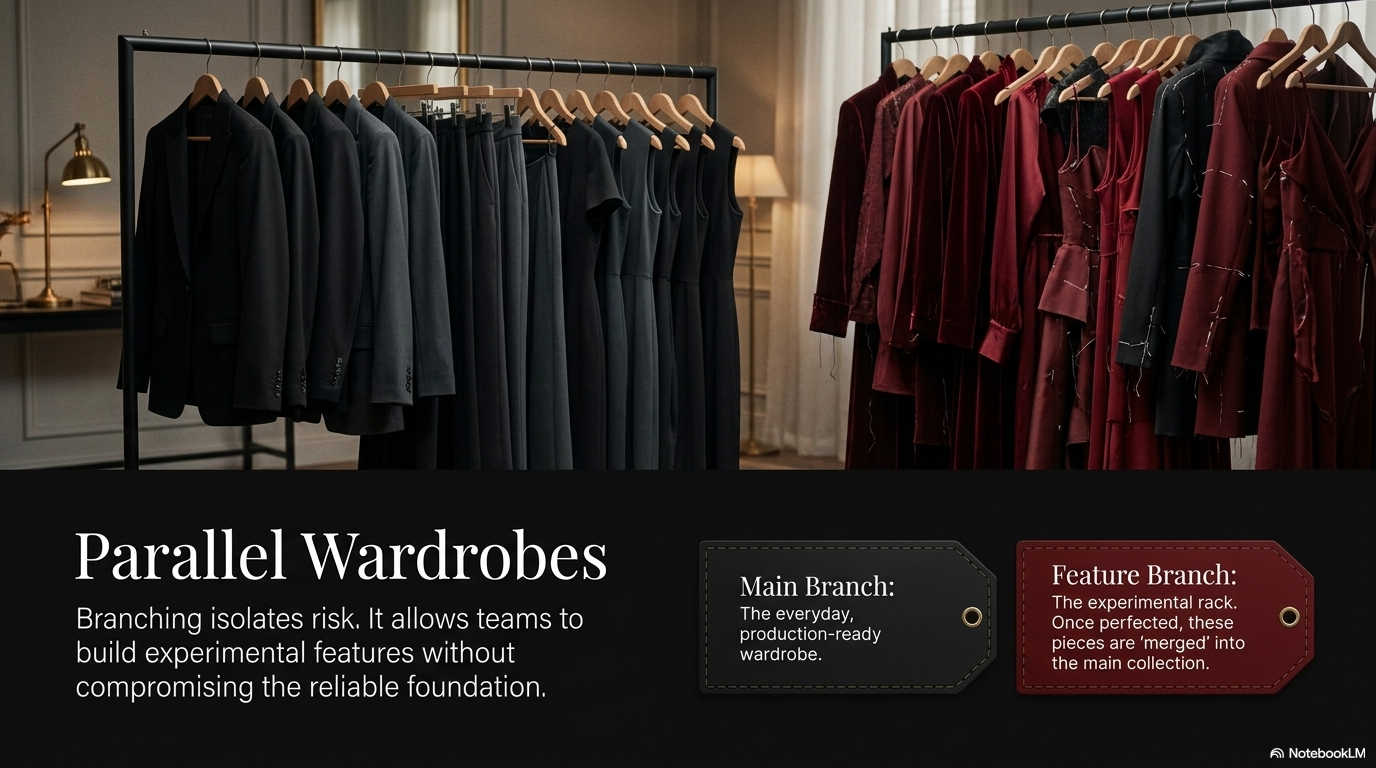
This guide covers the second half of the process. The first half built a single design language and shipped it across iOS, Android, and web (see Designing across iOS, Android, and web ). Here you keep that shared language: the colors, the type, the brand. You change only the platform-specific behaviors that users expect from their device.
The shared core, with platform overrides
Think of your app as one core with thin platform layers on top. The core holds everything that should never differ. The override layer holds the behaviors each operating system defines for itself.
When you direct an AI coding tool, name the layer you mean. Ask for “the shared brand color” or “the iOS-specific tab bar”. This keeps the core consistent while the overrides stay native.
iOS: make it feel like an Apple app
Apple documents how iOS apps should behave in the Human Interface Guidelines . iPhone users expect these patterns because every Apple app uses them. Match the conventions below, and your app feels like it belongs on the device.
Bottom tab bar for primary navigation
iOS apps put their top-level destinations in a tab bar pinned to the bottom of the screen. Three to five tabs work best. The user reaches every section with a thumb. Ask your AI tool for “a standard iOS bottom tab bar with SF Symbol icons”.
Large titles that shrink on scroll
iOS screens open with a large, bold title that collapses into a compact navigation bar as the user scrolls. This signals where they are and gives the screen a sense of place. Request “large titles that collapse on scroll”.
Back in the top-left, plus edge swipe-back
iOS places the back button in the top-left corner, labeled with the previous screen’s name. Critically, users also swipe from the left edge to go back. That swipe is muscle memory. If you break it, the app feels foreign. Keep the edge swipe-back gesture working on every screen.
Action sheets for choices
When a user triggers a set of actions, iOS slides up an action sheet from the bottom. Destructive options appear in red. Cancel sits at the bottom, easy to reach. Use action sheets, not custom modals, for “choose one of these actions” moments.
SF Symbols, haptics, and safe areas
SF Symbols are Apple’s icon set. They match the system font weight and feel native at every size. Add haptics: a light tap of feedback when the user completes an action, toggles a switch, or hits an error. Respect safe areas so content never hides behind the notch, the Dynamic Island, or the home indicator. Tell your AI tool to “use safe area insets” and “add haptic feedback on key actions”.
Android: make it feel like a Material app
Google defines Android’s design language in Material Design 3 . Android users expect Material patterns, and the system itself reinforces them. Match these conventions to feel native on the platform.
Material navigation bar
Android’s primary navigation also sits at the bottom, but it follows Material’s navigation bar spec: its own spacing, label behavior, and active-state indicator. It is not the same component as the iOS tab bar, even though both live at the bottom. Ask for “a Material 3 navigation bar”.
Floating action button for the primary action
Material apps surface the single most important action as a floating action button, a circular button that hovers above the content, usually bottom-right. Compose a new message, add an item, start a task: that goes in the FAB. iOS has no direct equivalent, so this is a true platform override.
System back button
Android has its own back affordance: the system back gesture or button, handled by the operating system. Your app must respond to it correctly, popping screens and closing dialogs as the user expects. Never trap the user by ignoring system back. Test that system back walks them out of every flow.
Ripple feedback on touch
When an Android user taps a button, a ripple animation spreads from the touch point. This is the Material signal that “the system registered your tap”. Use ripple feedback on tappable elements so the app feels responsive and on-platform.
Snackbars and dynamic color
Android shows brief messages in a snackbar, a short bar at the bottom that can carry one action like “Undo”. Use snackbars where iOS would use a toast or banner. Material 3 also offers dynamic color: the app can pick up an accent from the user’s wallpaper. Offer it where it fits your brand, and keep your core brand color as the fallback.
Web: make it feel like the web
The web has no single vendor handbook, so accessibility standards define the conventions. Follow WCAG 2.2 . Web users expect pointer, keyboard, and browser behaviors that mobile does not have.
Responsive breakpoints
A web layout must adapt from a narrow phone window to a wide desktop monitor. Define breakpoints where the layout reflows: one column on small screens, multiple columns on large ones. Ask for “responsive breakpoints at mobile, tablet, and desktop widths”.
Real hover and focus states
A mouse hovers; a phone does not. Buttons and links need a visible hover state so the pointer user knows what is interactive. Every interactive element also needs a clear focus state, a visible outline, when reached by keyboard. WCAG 2.2 requires focus to be visible and not hidden behind other content. Request “visible hover and focus states on all interactive elements”.
Full keyboard navigation
Many people use the web without a mouse. The user must reach every control with the Tab key, in a logical order, and activate it with Enter or Space. Skip-to-content links, focus traps in modals that release on Escape, and a sensible tab order are baseline. Tell your AI tool to “make the whole page keyboard navigable”.
Visible URLs and back-button support
The browser address bar and back button are part of the interface. Each meaningful screen needs its own URL the user can bookmark and share. The browser back button must work, moving the user to the previous view, not breaking the app. This is what makes a web app feel like the web rather than a mobile app trapped in a tab.
Branch behavior in code with platform-specific files
React Native lets you keep one shared component and branch only the platform-specific parts. The platform-specific code documentation
describes two patterns: Platform.select() for small differences inline, and the .ios.tsx / .android.tsx file-extension pattern for larger ones.
Use Platform.select() for a value that differs per platform:
import { Platform, StyleSheet, Text, View } from "react-native";

// Shared component, one small platform-specific value
export function PrimaryAction({ label }: { label: string }) {
  return (
    <View style={styles.container}>
      <Text style={styles.label}>{label}</Text>
    </View>
  );
}

const styles = StyleSheet.create({
  container: {
    // iOS uses a bottom action; Android floats a button bottom-right
    alignSelf: Platform.select({ ios: "stretch", android: "flex-end" }),
    padding: Platform.select({ ios: 16, android: 12 }),
  },
  label: {
    fontWeight: Platform.select({ ios: "600", android: "500" }),
  },
});
When a whole component differs, split it into two files. React Native picks the right one automatically by extension:
// Navigation.ios.tsx  -> a bottom tab bar with SF Symbols
import { Text, View } from "react-native";

export function Navigation() {
  return (
    <View>
      <Text>iOS bottom tab bar</Text>
    </View>
  );
}// Navigation.android.tsx -> a Material 3 navigation bar plus FAB
import { Text, View } from "react-native";
export function Navigation() {
return (
<View>
<Text>Material navigation bar</Text>
</View>
);
}Anywhere else in the app, import ./Navigation with no extension. React Native loads Navigation.ios.tsx on iOS and Navigation.android.tsx on Android. The shared core never knows the difference. Ask your AI tool to “split this into platform-specific files” when a behavior diverges enough that branching inline gets messy.
What changes per platform, at a glance
Keep the shared design language. Change only the four behaviors below.
| iOS | Android | Web | |
|---|---|---|---|
| Primary navigation | Bottom tab bar | Material navigation bar | Responsive nav with visible URLs |
| Back action | Top-left back, edge swipe | System back gesture | Browser back button |
| Primary action control | Action sheet or bar button | Floating action button | Button with hover and focus |
| Feedback | Haptics and action sheets | Ripple and snackbars | Hover, focus, and keyboard cues |
Use this table as a checklist when you review each platform. If your app matches the right column for its platform, it feels native. If it borrows another platform’s column, users notice the friction even when they cannot name it.
How to direct the work
Tackle the platforms one at a time, not all at once. Ship the iOS overrides, test them on a real iPhone, then move to Android, then web. Give your AI tool the vocabulary from this guide: “edge swipe-back”, “floating action button”, “visible focus state”. Precise words produce native results. Vague requests produce a unified app that feels native nowhere.
Further reading
- Apple Human Interface Guidelines : the official reference for iOS navigation, controls, and feedback patterns.
- Material Design 3 : Google’s guidelines for Android navigation bars, floating action buttons, ripple, and dynamic color.
- WCAG 2.2 : the accessibility standard that defines focus, keyboard, and pointer expectations on the web.
- React Native platform-specific code
: how to use
Platform.select()and the.ios.tsx/.android.tsxfile pattern. - Designing across iOS, Android, and web : the first-half guide for shipping a unified v1 before you add overrides.
- Mobile navigation patterns : a deeper look at tab bars, navigation bars, and back behavior.
- White space and visual hierarchy : keep the shared design language clean as you branch per platform.
- Expo : the toolchain that builds one React Native codebase to iOS, Android, and web.